
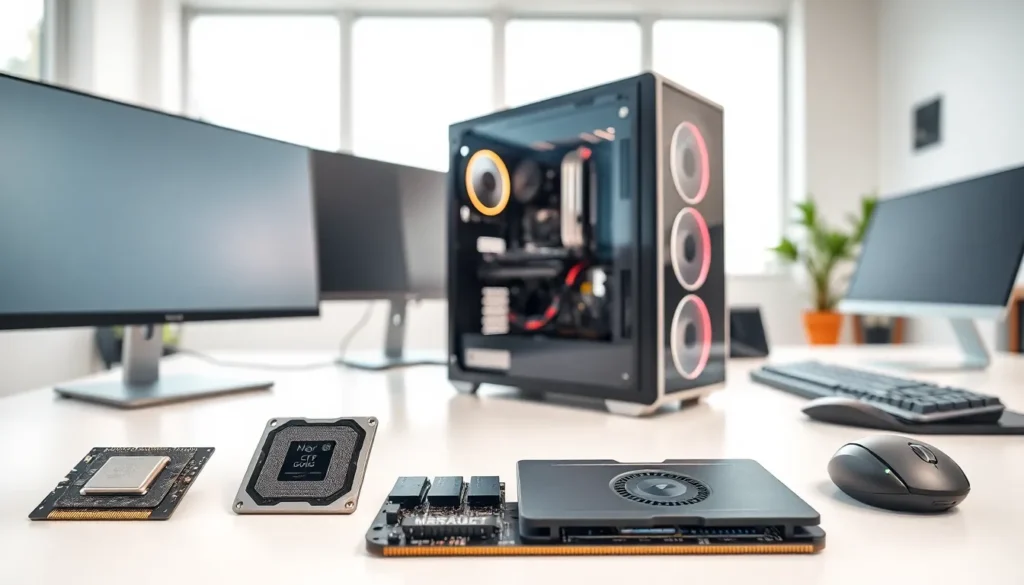
Hardware forms the physical foundation of every computing device. From the processor inside a laptop to the keyboard beneath your fingertips, hardware includes all the tangible components that make technology work. Understanding hardware helps users make smarter purchasing decisions, troubleshoot problems, and extend the lifespan of their devices.
This guide covers the essential types of computer hardware, explains how to select the right components, and provides practical tips for maintenance and upgrades. Whether someone is building a custom PC or simply wants to understand what’s inside their machine, this information will prove valuable.
Table of Contents
ToggleKey Takeaways
- Hardware includes all physical components of a computer, from internal parts like CPUs and RAM to external devices like keyboards and monitors.
- Understanding hardware helps users make smarter purchasing decisions, troubleshoot issues, and extend device lifespan.
- When choosing hardware, match components to your intended use—gamers need powerful GPUs, while office users should prioritize reliability and RAM.
- Always check hardware compatibility before purchasing, as CPUs, motherboards, RAM, and power supplies must work together.
- Regular maintenance like dust cleaning and temperature monitoring prevents overheating and extends the life of your hardware.
- Upgrading RAM or storage drives offers the biggest performance boost for aging systems without replacing the entire computer.
What Is Hardware?
Hardware refers to the physical parts of a computer or electronic device. Unlike software, which consists of programs and data, hardware is something users can touch and see. Every computing task, from loading a webpage to running a video game, requires hardware to execute instructions.
The term hardware applies to a wide range of components. Processors, memory modules, storage drives, and graphics cards all qualify as hardware. So do monitors, keyboards, mice, and printers. Even cables and power supplies fall under this category.
Hardware and software work together in every computing operation. The software sends instructions, and the hardware carries them out. A computer without hardware would have nothing to process data. A computer without software would have no instructions to follow. Both elements are essential.
Different types of hardware serve different purposes. Some components handle processing power. Others manage storage or enable communication between devices. Understanding these distinctions helps users identify which hardware affects performance and which components might need upgrading.
Types of Computer Hardware
Computer hardware falls into two main categories: internal components and external devices. Each category contains multiple types of hardware that serve specific functions.
Internal Components
Internal hardware sits inside the computer case. These components handle the core operations that make computing possible.
Central Processing Unit (CPU): The CPU acts as the brain of the computer. It processes instructions from software and coordinates activities across all other hardware. Faster CPUs handle more tasks simultaneously.
Random Access Memory (RAM): RAM provides temporary storage for data the CPU needs quickly. More RAM allows computers to run multiple programs smoothly without slowdowns.
Storage Drives: Hard disk drives (HDDs) and solid-state drives (SSDs) store files, programs, and the operating system. SSDs offer faster read and write speeds than traditional HDDs.
Graphics Processing Unit (GPU): The GPU renders images, videos, and animations. Gamers and video editors typically need powerful GPUs for demanding visual tasks.
Motherboard: The motherboard connects all internal hardware components. It allows the CPU, RAM, GPU, and storage drives to communicate with each other.
Power Supply Unit (PSU): The PSU converts electrical power from an outlet into usable energy for computer components. A quality PSU protects hardware from power surges.
External Devices and Peripherals
External hardware connects to the computer from outside the case. These devices expand functionality and enable user interaction.
Input Devices: Keyboards, mice, scanners, and microphones send information to the computer. Users rely on input devices to control software and enter data.
Output Devices: Monitors, printers, and speakers display or produce information from the computer. Output hardware makes digital content visible or audible.
Storage Peripherals: External hard drives, USB flash drives, and memory cards provide additional storage space. They also enable easy file transfers between devices.
Networking Hardware: Routers, modems, and network interface cards connect computers to the internet and local networks. This hardware enables online communication and data sharing.
How to Choose the Right Hardware for Your Needs
Selecting hardware requires matching components to intended use cases. A casual web browser needs different hardware than a professional video editor.
Define the purpose first. Gaming requires a powerful GPU and fast processor. Office work prioritizes reliability and adequate RAM. Creative professionals need high-capacity storage and color-accurate monitors. Knowing the primary use helps narrow down options.
Set a realistic budget. Hardware prices range from affordable to premium. Mid-range components often deliver excellent value. Buyers should allocate more budget to components that directly affect their primary tasks.
Check compatibility. Not all hardware works together. CPUs must match motherboard socket types. RAM must meet motherboard specifications. GPUs require adequate power supply wattage. Researching compatibility prevents costly mistakes.
Read reviews and benchmarks. Real-world performance data reveals how hardware performs under actual conditions. Professional reviews and user feedback highlight strengths and weaknesses that specifications alone don’t show.
Consider future needs. Technology advances quickly. Buying slightly better hardware than currently needed extends the useful life of a system. Choosing a motherboard with extra RAM slots or expansion ports allows for future upgrades.
Prioritize quality brands. Reputable manufacturers typically offer better build quality, longer warranties, and reliable customer support. Saving a few dollars on unknown brands sometimes leads to premature failures.
Maintaining and Upgrading Your Hardware
Proper maintenance extends hardware lifespan and preserves performance. Regular care prevents many common problems.
Keep hardware clean. Dust accumulates inside computers and blocks airflow. Clogged vents cause overheating, which damages components over time. Compressed air removes dust from fans, vents, and heat sinks. Cleaning every few months maintains optimal temperatures.
Monitor temperatures. Software tools track CPU and GPU temperatures during operation. Consistently high temperatures indicate cooling problems. Adding case fans or upgrading the CPU cooler solves most overheating issues.
Update drivers regularly. Hardware drivers enable communication between components and the operating system. Updated drivers improve performance and fix bugs. Manufacturers release driver updates through their websites.
Handle components carefully. Static electricity damages sensitive hardware. Users should ground themselves before touching internal components. Holding parts by their edges prevents damage from skin oils.
Know when to upgrade. Slow performance, frequent crashes, and inability to run new software signal that hardware needs replacement. Upgrading RAM and storage often provides the biggest performance boost for aging systems. Replacing a GPU improves gaming and creative work.
Back up data before changes. Upgrading storage drives or making major hardware changes risks data loss. Creating backups on external drives or cloud services protects important files.