
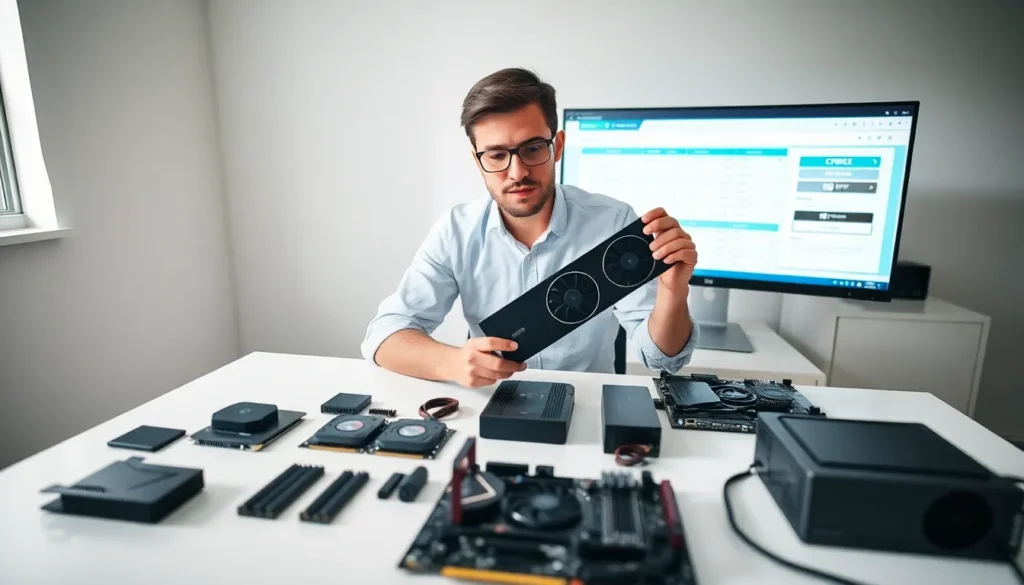
A solid hardware guide can save builders hours of research and hundreds of dollars in mistakes. Whether someone is building their first PC or upgrading an aging system, understanding each component’s role makes all the difference. This hardware guide breaks down the essential parts every computer needs, from processors to power supplies. It covers what to look for, what to avoid, and how to ensure everything works together. By the end, readers will have the knowledge to make confident hardware decisions for any build.
Table of Contents
ToggleKey Takeaways
- A comprehensive hardware guide helps builders avoid costly mistakes by understanding how each component works together.
- Match your processor to your actual needs—gaming benefits from high clock speeds, while video editing demands more cores.
- For optimal performance, use 16GB of RAM for general use or 32GB for content creation, and always configure dual-channel memory.
- Combine an NVMe SSD for your operating system with an HDD for bulk storage to balance speed and cost.
- Calculate your total power draw and add a 20-30% buffer when selecting a PSU to prevent instability and crashes.
- Use compatibility tools like PCPartPicker to verify socket types, physical dimensions, and power requirements before purchasing.
Understanding Core Hardware Components
Every computer relies on a set of core hardware components that work together. The processor (CPU) handles calculations and runs programs. The motherboard connects all components and allows them to communicate. RAM provides temporary memory for active tasks, while storage drives hold files and programs permanently.
The graphics card (GPU) renders images and video. For gaming or creative work, a dedicated GPU matters significantly. The power supply unit (PSU) delivers electricity to every part. Without adequate power, components fail or underperform.
A hardware guide should emphasize that these parts form a chain. One weak link affects the entire system. A powerful processor paired with insufficient RAM creates bottlenecks. A high-end GPU plugged into an underpowered PSU causes crashes. Understanding how these components interact helps builders make smarter choices.
Choosing the Right Processor and Motherboard
The processor sits at the heart of any build. It determines how fast a system runs applications, games, and multitasking workloads. Intel and AMD dominate the consumer market. Intel’s Core series offers strong single-thread performance. AMD’s Ryzen chips provide excellent multi-core value.
When selecting a CPU, consider the intended use. Office work and web browsing need modest processors. Video editing and 3D rendering demand more cores. Gaming benefits from high clock speeds. This hardware guide recommends matching the processor to actual needs rather than buying the most expensive option.
The motherboard must match the processor’s socket type. An Intel 12th or 13th Gen chip requires an LGA 1700 socket. AMD Ryzen 7000 series uses AM5. The motherboard also dictates how many RAM slots, storage connections, and expansion cards the system supports.
Chipsets matter too. Higher-end chipsets like Intel’s Z790 or AMD’s X670 allow overclocking and offer more features. Budget chipsets like B660 or B650 work fine for most users. Check that the motherboard supports the desired RAM speed and has enough USB ports for peripherals.
Memory, Storage, and Graphics Card Essentials
RAM affects how smoothly a system handles multiple programs. For general use, 16GB works well. Content creators and heavy multitaskers should consider 32GB. Speed matters, DDR5 offers higher bandwidth than DDR4, though DDR4 remains cost-effective for many builds.
This hardware guide stresses matching RAM to motherboard specifications. Check the maximum supported speed and capacity. Dual-channel configurations (two sticks instead of one) improve performance noticeably.
Storage comes in two main forms: SSDs and HDDs. Solid-state drives (SSDs) load programs and boot systems much faster. NVMe SSDs connected via M.2 slots offer the best speeds. Hard disk drives (HDDs) provide cheaper bulk storage for large file collections. Many builders use an NVMe SSD for the operating system and frequently used programs, plus an HDD for media storage.
Graphics cards determine visual performance. Integrated graphics built into CPUs handle basic tasks. Dedicated GPUs from NVIDIA or AMD power gaming, video editing, and 3D work. Match the GPU to the monitor’s resolution. A mid-range card handles 1080p gaming easily. 4K gaming requires high-end options. Always verify that the power supply provides enough wattage and the correct power connectors for the chosen GPU.
Power Supply and Cooling Considerations
The power supply unit deserves careful attention. An underpowered PSU causes instability, random shutdowns, and potential damage. This hardware guide suggests calculating total system power draw, then adding a 20-30% buffer. Online PSU calculators help estimate requirements based on selected components.
Efficiency ratings indicate how well a PSU converts AC power to DC. Look for 80 Plus Bronze certification at minimum. Gold and Platinum ratings waste less energy as heat. Modular PSUs allow users to connect only needed cables, improving airflow and aesthetics.
Cooling keeps components within safe temperatures. Stock CPU coolers handle basic workloads. Overclocked or high-performance processors need aftermarket air or liquid coolers. Tower air coolers offer reliable, quiet cooling at reasonable prices. All-in-one (AIO) liquid coolers provide excellent thermal performance with a cleaner look.
Case fans matter too. Most cases include one or two fans. Adding intake and exhaust fans creates positive airflow that pulls cool air in and pushes hot air out. Monitor temperatures after building to ensure the cooling solution handles the workload.
Tips for Selecting Compatible Hardware
Compatibility prevents headaches. Every hardware guide should emphasize checking parts before purchasing. Use tools like PCPartPicker to verify that components work together. These tools flag socket mismatches, clearance issues, and power problems automatically.
Verify physical dimensions. Large tower CPU coolers may not fit in compact cases. Long graphics cards require adequate clearance. Check case specifications for maximum GPU length and cooler height.
Confirm BIOS support for newer processors. Sometimes a motherboard needs a firmware update before it recognizes a new CPU. Some boards offer BIOS flashback features that update firmware without a working processor installed.
Consider future upgrades. A motherboard with extra RAM slots and M.2 connectors allows expansion later. A slightly larger PSU handles future GPU upgrades without replacement.
Read reviews from multiple sources. User feedback reveals real-world issues that specifications don’t show. Look for patterns, if many buyers report the same problem, take it seriously.