
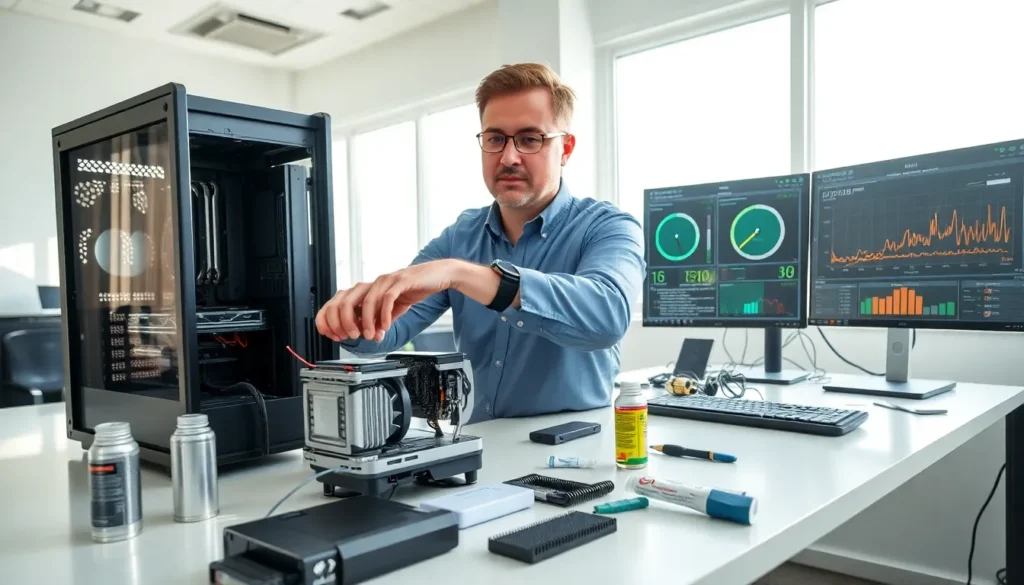
Hardware techniques form the backbone of efficient computing systems. Whether someone manages a personal workstation or oversees enterprise infrastructure, understanding these methods can dramatically improve system performance and reliability.
Modern computers demand careful attention to physical components. Processors generate heat. Memory modules degrade over time. Storage drives fail without warning. Each of these issues requires specific hardware techniques to address effectively.
This guide covers the essential methods every tech professional and enthusiast should know. From optimization fundamentals to long-term maintenance strategies, these hardware techniques will help anyone get more from their computing equipment.
Table of Contents
ToggleKey Takeaways
- Hardware techniques like monitoring temperatures and utilization rates help identify bottlenecks and prevent component failures.
- Enabling XMP profiles in BIOS and keeping firmware updated are simple hardware techniques that boost system performance.
- Use the elimination method and diagnostic tools like MemTest86 to systematically troubleshoot hardware problems before they cause data loss.
- Strategic upgrades—especially adding RAM or switching to an SSD—deliver the biggest performance improvements per dollar spent.
- Regular cleaning, proper airflow management, and replacing thermal paste every 2–3 years significantly extend hardware lifespan.
- Monitor SMART data on storage drives and replace aging components proactively to avoid unexpected failures.
Understanding Hardware Optimization Fundamentals
Hardware optimization starts with knowing what each component does and how it interacts with others. A system runs only as fast as its slowest part allows. Identifying bottlenecks is the first step in any optimization process.
Component Identification and Assessment
CPUs, GPUs, RAM, and storage drives each play distinct roles. The CPU handles general calculations. The GPU processes graphics and parallel tasks. RAM provides fast temporary storage. Solid-state drives or hard drives store data permanently.
Effective hardware techniques require monitoring these components. Tools like HWiNFO, CPU-Z, and built-in system monitors reveal temperatures, clock speeds, and utilization rates. High temperatures above 80°C often indicate cooling problems. Constant 100% utilization suggests a component needs upgrading.
BIOS and Firmware Configuration
The BIOS controls how hardware communicates at startup. Simple adjustments here can yield significant performance gains. Enabling XMP profiles activates RAM at its rated speed instead of default settings. Adjusting fan curves keeps temperatures lower during heavy workloads.
Firmware updates fix bugs and add features. Manufacturers release these updates regularly for motherboards, SSDs, and GPUs. Checking for updates quarterly is a good practice. But, users should read release notes carefully. Some updates address issues that may not affect every system.
Common Hardware Troubleshooting Techniques
Hardware problems often present similar symptoms. A computer that won’t boot could have a dead power supply, failed RAM, or a disconnected cable. Systematic troubleshooting narrows down the cause quickly.
The Elimination Method
Start with the simplest explanations. Check that all cables are connected firmly. Verify the power outlet works by plugging in another device. Look for LED indicators on the motherboard that signal specific failures.
Swapping components isolates problems efficiently. If a system crashes randomly, try replacing the RAM with known-good modules. If crashes stop, the original RAM was faulty. This same technique works for power supplies, graphics cards, and storage drives.
Diagnostic Tools and Testing
MemTest86 checks RAM for errors by running intensive patterns overnight. CrystalDiskInfo monitors storage drive health through SMART data. These hardware techniques catch problems before they cause data loss.
POST codes displayed on motherboard LED readouts indicate startup failures. The manual for each motherboard lists what each code means. A code pointing to memory issues, for example, suggests reseating or replacing RAM modules.
Heat-Related Failures
Overheating causes shutdowns, throttling, and long-term damage. Dust buildup in heatsinks and fans reduces cooling efficiency. Compressed air clears dust from tight spaces. Reapplying thermal paste every two to three years restores heat transfer between CPUs and coolers.
Performance Enhancement Strategies
Beyond fixing problems, hardware techniques can push systems to perform better than stock specifications allow. These methods range from simple upgrades to advanced overclocking.
Strategic Component Upgrades
Adding RAM often provides the biggest performance boost per dollar. Systems with 8GB struggle with modern multitasking. Upgrading to 16GB or 32GB eliminates slowdowns when running multiple applications.
SSD upgrades transform old systems. Replacing a spinning hard drive with an SSD reduces boot times from minutes to seconds. NVMe drives offer even faster speeds for users who transfer large files regularly.
Overclocking Fundamentals
Overclocking increases component speeds beyond factory settings. CPUs and GPUs can often run 10-20% faster with proper cooling. This requires adjusting voltages and frequencies in BIOS or dedicated software.
Risks exist with overclocking. Higher speeds generate more heat. Excessive voltage shortens component lifespan. Stability testing with programs like Prime95 or FurMark ensures overclocks don’t cause crashes under load.
Airflow Optimization
Case airflow affects every component’s performance. Front fans should pull cool air in. Rear and top fans should push hot air out. This creates positive pressure that prevents dust buildup while keeping temperatures low.
Cable management improves airflow further. Bundling cables behind the motherboard tray opens pathways for air movement. Even small improvements in airflow can lower temperatures by several degrees.
Maintenance and Longevity Best Practices
Proper maintenance extends hardware life significantly. A well-maintained computer can run reliably for a decade or more. Neglected systems often fail within three to five years.
Regular Cleaning Schedules
Dust is hardware’s biggest enemy. Monthly exterior cleaning with microfiber cloths keeps surfaces tidy. Quarterly internal cleaning with compressed air prevents buildup on heatsinks and fans.
Filters on intake fans trap dust before it enters the case. Washing or replacing these filters monthly maintains airflow. Systems in dusty environments need more frequent attention.
Environmental Considerations
Humidity damages electronics. Keeping computers in climate-controlled rooms prevents corrosion and static buildup. Ideal humidity sits between 40% and 60%.
Power quality matters too. Surge protectors guard against voltage spikes. Uninterruptible power supplies (UPS) prevent shutdowns during outages. Both protect sensitive components from electrical damage.
Replacement Cycles
Some components wear out predictably. Thermal paste dries and cracks over time, reducing cooling efficiency. Replacing it every two to three years maintains optimal heat transfer.
Hard drives with moving parts typically last five to seven years. Monitoring SMART data reveals declining health before total failure. Backing up data and replacing aging drives prevents unexpected data loss.
Fans eventually wear out as bearings degrade. Strange noises or reduced airflow indicate replacement time. Keeping spare fans on hand allows quick swaps when needed.